

How to access MyHowden App
This guide is designed to help you access your policy details quickly and conveniently via our App. In the first section we will focus on installing the App and gaining access.
If you have opted to receive your documents electronically, you should have received a welcome email with instructions on how to access the App. This email should contain information that you need to login with as well as a link to the relevant App store.
The Howden App consists of the following main areas:
Your Policies – An overview of your policy details and a quick access to recent documents. You can also use the policy switch tool here to locate additional policies including past and present.
Contact Us – Your branch contact information including telephone number, address, and email address helping you to reach us if needed.
Documents – All your Policy documents, you can save or download them to your device, or print them at home!
More – Insurance FAQs, Howden Website link and Acknowledgements.
Downloading the App and logging in
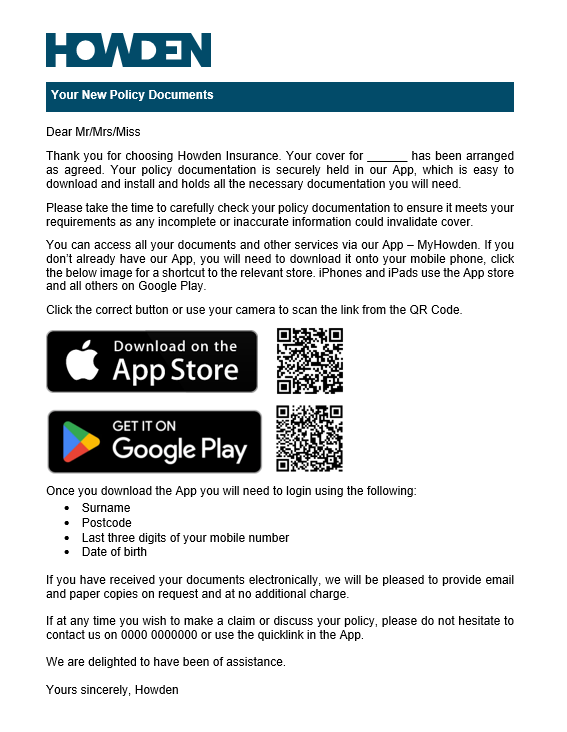
You will have received an email, from here, you can choose to either download from the Apple Store or get it from Google Play. iPhones and iPads use the Apple store, and all other users will use Google Play. Once you have selected the suitable option, you will be re-directed to the App store to download the MyHowden App. If you are viewing this email on your laptop or desktop – you can scan the QR code using your mobile phone and you will be redirected to the relevant App store for your device.


Once the App has been successfully installed, this is the icon to locate on your home page. Tap the icon to launch the App.

Upon launching the App, you will view the Welcome Page. You can simply tap “Login” to proceed to the next screen.

The details required to login to the App are:
- Surname – This is the Policyholder's Surname.
- Postcode - If your policy is held in a personal name, please enter your home postcode. If your policy is held in company name, please enter your business postcode.
- Last three digits of mobile number – We will send you a SMS verification message to this number.
- Date of Birth – Please input in the format of 01/01/1990.

After inputting your details, if any of the fields are highlighted in orange it means there is an error. Please check the information you have entered is correct, if the error persists, please contact your branch for support.
Once you have inputted your information successfully, the “Request Code” button is no longer disabled, and you can tap to continue.
You will now receive a 5-digit verification code which is sent to you via text message, you can enter this code using your keyboard or for ease, you can paste the code into the fields for a quick shortcut. Once you have entered the code, you can now tap login to proceed to the next page!


If the code has been mistyped or inputted incorrectly the “Invalid Code” error message will be displayed. You can tap “Ok” against the error message, request a new code and repeat that process if required. Another code can be requested after a 2-minute cool down and there is a countdown timer displaying when the new code is available.
Welcome Page - You are now logged in! You can tap “Next” to proceed.
Enable Notifications – You can either “Allow” or “Don’t Allow” permissions for notifications either option selected will continue to the overview screen coming next. Notification permissions can be changed at any point via device settings.


Your Policy
There are three main pages within the App, which you can use the bottom tool bar to navigate between. Firstly, we have the “Your Policy” tab where you have an overview of your policy information, a quick shortcut to your recent documents and simple access branch contact information.


On the right hand side you can see either the vehicle registration or the postcode of the property which is insured – As Example shown here “ZZ24 ABC”/” SE8 3WD” which has an orange underline. Tapping this will show the policy switch tool which can be used if you hold more than one policy, or would like to view an expired policy. To return back to the previous page you can tap the “x” in the top right corner.

So assist with this page, There is a “viewing” label to confirm which policy is currently being viewed to and any expired policies will also have “Expired” label.
There is the option to refresh if the desired policy is not shown on this screen. When performing a refresh, it will display as a spinner whilst loading. If new policies are found they will be shown on the policies page, if not the message “Our Systems are now checking for your new policies. Please check back again later”.
Contact Us
The “Contact us” button has some very helpful features to make it easier than ever to get in contact with us. The contact details button will provide the contact information for the branch the selected policy is held with.

All of the options on this screen can be tapped to interact with depending on your preferred method of contact.
If you tap the phone icon, it will suggest calling the branch.
If you tap the location pin it will provide directions to the branch after selecting your chosen map application.
If you select the email option the App will open a draft email to send using the chosen mail application.
Documents
The “Documents” tab includes all your policy documents for the selected policy, such as your Cover Letter, Certificate of Insurance, Policy Schedule, Proposal Form and more. To open a document, tap the selected one, the image on the right will change from the cloud icon, to show the spinner whilst it downloads and once its ready to view it will show as the arrow >. You can tap the document and it will open on your device.

Once the document has opened, there is then the “Action” button which will allow you to either save to your device, share the document with trusted third parties, or print them at home!

More
The “More” tab includes a link to our Howden FAQ’s, a link to the Howden Website, our privacy policy and finally acknowledgements.
There is also the option to logout which will prompt the logout confirmation.

FAQ’S – The FAQ link’s are dependant on the type of policy being viewed, for example, if you are viewing a motor policy is will redirect you from the App to here.
If you are viewing a home policy it will redirect you to here.
There are lots of helpful articles within both of these webpages which will hopefully be able to answer some insurance related frequently asked questions.
Login - Frequently Asked Questions and Tips
What happens if I have changed my phone number?
Please make sure your new number is updated in our system by contacting your local branch.
How do I contact my branch through the App?
Use the “Contact Us” button. It will show contact details for the branch linked to the selected policy, and you can call, email, or get directions via maps.
What if I mistype the code or it expires?
You’ll see an “Invalid Code” message. You can request a new code after a short cooldown period.
I didn’t receive an SMS verification message?
Please contact your branch and we will investigate.
Error Messages
Unable to find policy – “We were unable to find a policy with the details provided. Please check and try again. If the problem persists please contact your branch.” This error message will indicate that we’re unable to match information held on our systems. Its recommended to check the information has been inputted correctly and retry. If the error message continues, please contact your branch for support.
Unable to connect – “Please check your internet connection and try again”. This message may occur when a request has been made and there is no internet connection available. Please check your device’s data connection or WiFi and try again.
No supported policies - “Your account contains no policies this App can support. Please contact your local Howden branch for further assistance.” The App currently supports Motor and Household Insurance policies so if you hold other policy types they may not be visible here yet, if you would like to query a policy, please contact your Howden branch directly.